
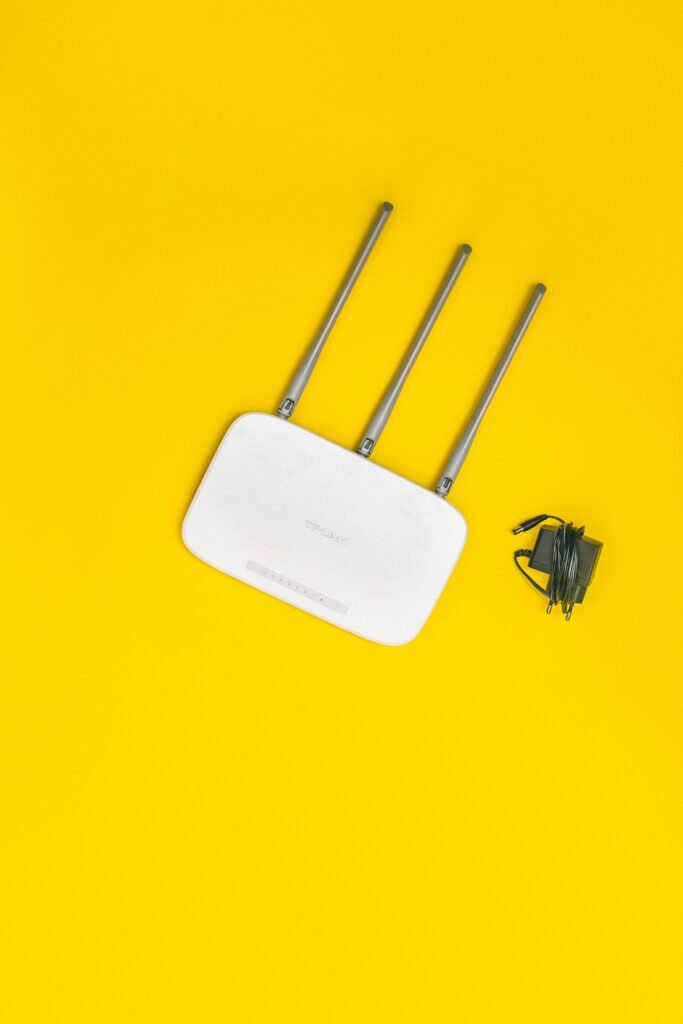
Introduction — The Internet Devices You Use Daily (But Never Think About)
Every time you stream a movie, join a video call, or scroll social media, two silent devices are working behind the scenes to make it all happen: your modem and your router.
You’ve probably seen them a blinking box plugged into the wall and another one sending out Wi-Fi. But what do they actually do? Are they the same thing? Do you need both? And why does it matter when your connection slows down or drops entirely?
If you’ve ever been frustrated by weak Wi-Fi in the bedroom, had to restart your “internet box” without knowing which one it was, or wondered why your provider said your router was the problem this guide is for you.
We’ll break down:
- What a modem does
- What a router does
- How they work together
- What to know when troubleshooting or upgrading
- And why understanding these basics can make your internet experience way less stressful
No tech jargon. No sales pitch. Just the essentials clearly explained.
What Is a Modem? — The Gateway That Connects You to the Internet
Let’s start with the modem the quiet box that brings the internet into your home in the first place.
So, what does a modem actually do?
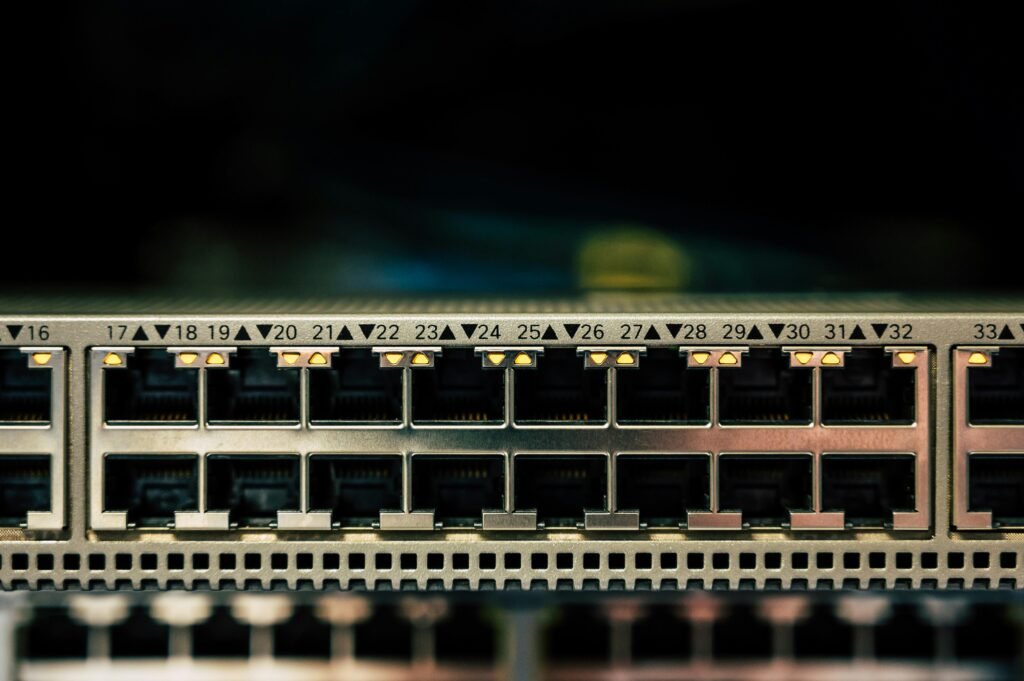
In simple terms, a modem is the bridge between your internet provider and your home. It takes the signal coming in through your wall from a coaxial cable, fiber line, or phone jack and converts it into something your home devices can understand and use.
Without a modem, there’s no connection to the outside world. Your router, your devices, your Wi-Fi they all rely on the modem to get access to the internet.
Real-Life Analogy: The Main Water Valve
Think of your home internet like water flowing into your house.
- The modem is the main valve that brings the water in from the street.
- Everything else in your house (the faucets, showers, appliances) depends on that water source working first.
Just like a closed water valve means no water, a disconnected or malfunctioning modem means no internet.
Where is it in your home?
Usually, the modem is:
- Plugged directly into the wall via a coaxial cable (for cable internet), a phone line (for DSL), or a fiber terminal
- Positioned near your main internet service entry point not always in the most central or convenient location
- Often has one Ethernet port on the back, which connects it to your router
Different Modem Types (No Deep Dive)
You don’t need to memorize this, but it helps to know:
- DSL modems use telephone lines
- Cable modems use coaxial cables (common with Spectrum, Xfinity, etc.)
- Fiber modems are usually called ONTs (Optical Network Terminals)
Regardless of type, the role is the same: the modem talks to your ISP’s network and brings the internet to your home.
What Is a Router? — The Manager of Your In-Home Internet Traffic
If the modem brings the internet into your home, the router is what makes that internet usable across all your devices and through your Wi-Fi.
So, what does a router actually do?
The router takes the internet signal from your modem and distributes it to everything in your home: phones, laptops, TVs, smart speakers, tablets, game consoles anything that connects via Wi-Fi or Ethernet.
Without a router, only one wired device could connect to the modem. No Wi-Fi. No multi-device access. No convenience.
Real-Life Analogy: The Internet’s Air Traffic Controller
Imagine your modem as the airport delivering planes (internet signal) to your home.
Your router is the air traffic controller deciding:
- Which plane (device) gets to land and take off
- In what order
- And on which runway (Wi-Fi band or Ethernet port)
It keeps everything organized and moving so your devices don’t crash into each other trying to access the internet.
What Makes Routers So Important?
- They create your Wi-Fi network
- They allow multiple devices to connect at once
- They help prioritize traffic (some models let you prioritize work calls over downloads)
- Many include security features, like firewalls and guest networks
- The quality of your router heavily influences Wi-Fi range, speed, and stability
Where Is It in Your Home?
Most routers are:
- Located near your modem
- Plugged into the modem with an Ethernet cable
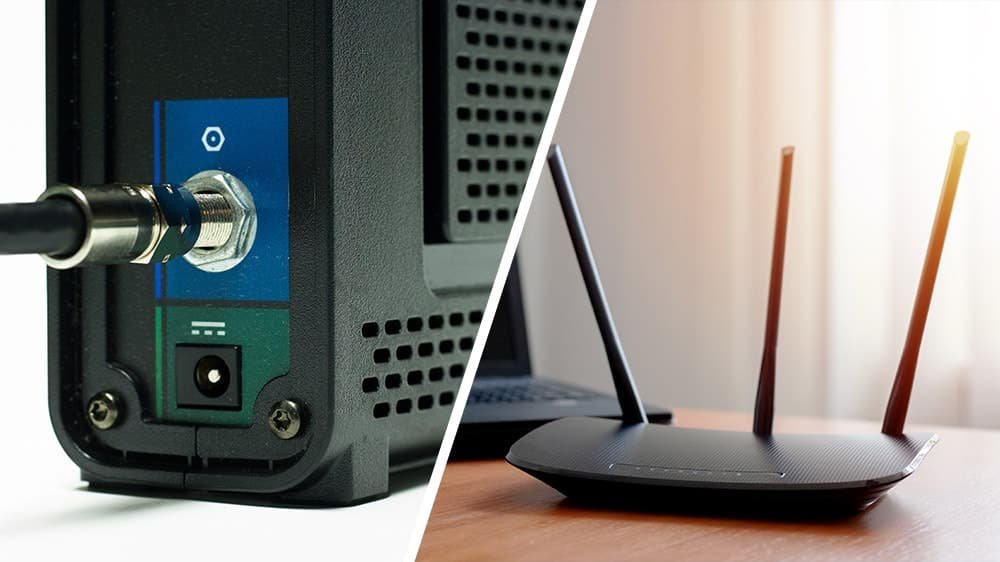
- Equipped with one or more antennas (for Wi-Fi)
- Have flashing lights labeled “Power,” “Internet,” “2.4 GHz,” “5 GHz,” etc.
If your Wi-Fi only works well in some rooms or drops when many people are online your router is almost always the reason.
How Modem and Router Work Together — A Simple Partnership
Modems and routers aren’t competing technologies they’re a team. One brings the internet in. The other spreads it around.
When your connection is working smoothly, it’s because these two devices are doing their jobs together.
Step-by-Step: What Happens When You Go Online
- The modem connects to your internet service provider (ISP) bringing in the signal
- The router receives that signal and creates a local network in your home
- Your devices connect to the router either wirelessly (Wi-Fi) or through Ethernet cables
- The router directs internet traffic to and from each device without crashing the system
Every time you load a web page or stream a show, the signal travels:
ISP → modem → router → your device
And back again, instantly — if everything’s working right.
Real-Life Analogy: Plumbing System
- The modem is the main pipe bringing water into your home
- The router is the system of smaller pipes distributing water to your sink, shower, and washing machine
- If either part fails no water (or internet) reaches where it’s needed
When One Fails, the Other Can’t Help
- If the modem goes out (e.g. ISP outage, loose cable): no internet enters your home
- If the router fails (e.g. aging device, signal issues): internet is there, but your devices can’t reach it
That’s why knowing which one does what is so useful it helps you pinpoint where the issue really is.
What About Combo Devices? — When Modem and Router Are in One Box
If you only see one box with blinking lights in your home, you’re probably using a modem-router combo unit and that’s completely normal.
Many internet providers supply these all-in-one devices by default. They’re designed to handle both tasks: bringing internet into your home (modem) and sending it to your devices (router).
How Combo Devices Work
A combo device:
- Connects to your ISP (modem function)
- Creates your Wi-Fi network (router function)
- Often includes Ethernet ports for wired devices
- Usually has a single power cord, a coaxial (or fiber/DSL) input, and blinking signal/Wi-Fi lights
If your internet setup came pre-installed by your provider and there’s only one box near your wall outlet you’re using a combo.
Pros of Combo Devices
- Simple setup just plug in one device
- Fewer wires and less clutter
- Convenient for most everyday households
- Easy for your ISP to support remotely
Cons of Combo Devices
- Less flexible — you can’t upgrade your router without replacing the whole unit
- Harder to troubleshoot — when something goes wrong, it’s harder to isolate whether it’s the modem or the router
- Performance limitations — some built-in routers may not offer the best range or features (e.g. parental controls, faster Wi-Fi standards)
Should You Use One?
Yes, if:
- You’re not very tech-savvy
- Your home internet use is moderate (email, browsing, streaming)
- Your provider set it up and it works fine
Consider separate devices if:
- You want stronger Wi-Fi coverage or advanced controls
- You’re in a large home or using many connected devices
- You need to upgrade just one part of your setup (e.g. newer router for faster Wi-Fi)
Why This Matters — And What to Check When Something Goes Wrong
You don’t need to be an IT expert to understand your home network. But knowing the basics what your modem and router do can save you hours of frustration when the internet starts acting up.
Common Problems and What They Usually Mean
| Problem | Likely Issue | Which Device? |
| No internet at all | Outage or disconnected service | Modem |
| Wi-Fi signal is weak in some rooms | Poor range or signal interference | Router |
| Devices randomly disconnect | Overloaded or aging router | Router |
| Internet works when plugged in, but not on Wi-Fi | Router misconfiguration | Router |
| Everything lights up, but nothing loads | Bad modem signal or ISP issue | Modem |
3 Things to Check First (Before Calling Your ISP)
- Is the modem’s “Internet” light on?
- If not: Check for loose coaxial or fiber cable
- If not: Check for loose coaxial or fiber cable
- Can you connect with an Ethernet cable directly?
- If yes: The modem is working — it’s a router/Wi-Fi problem
- If yes: The modem is working — it’s a router/Wi-Fi problem
- Have you restarted the device(s)?
- Power cycling solves many common glitches
- Power cycling solves many common glitches
A Few More Practical Tips
- Place your router in a central, elevated spot (not in a closet)
- Don’t stack the router and modem on top of each other they can overheat
- If your devices often lose connection, check if your router is more than 3–5 years old it may not support newer tech
Do You Need to Replace Your Equipment? Maybe Here’s How to Know
Most modem and router issues don’t mean you need to rush out and buy new gear. But if your connection is inconsistent or your equipment is outdated it could be time for a change.
Signs Your Modem or Router Might Be Failing
- Frequent internet dropouts, even after restarting
- Wi-Fi cuts out in the same rooms consistently
- Devices won’t stay connected, or disconnect randomly
- Speeds are far below what your plan promises
- Your equipment is more than 5 years old
- You’re renting a unit from your ISP that hasn’t been updated in years
Before Replacing Anything, Try This First
Restart both devices (unplug for 30 seconds, then plug back in)
Check for firmware updates (especially on routers)
Move the router to a more central location
Connect a device directly to the modem with Ethernet to see if Wi-Fi is the issue
Call your ISP they can often check your modem signal remotely
Rented vs. Owned Equipment
- If you rent a combo unit from your ISP and it’s outdated, they’ll usually replace it for free
- If you own your equipment and it’s several years old, it may not support newer internet speeds or Wi-Fi standards (like Wi-Fi 6)
- Upgrading your router can dramatically improve performance especially in large homes
But again: only replace your equipment if it’s the clear bottleneck. Don’t fall into the trap of chasing new gear when the issue might be elsewhere (like ISP congestion or poor wiring).
Final Thoughts — Know the Basics, Stay in Control
You don’t need to be a networking expert to have reliable internet you just need to understand the basics.
Here’s the quick recap:
- The modem connects your home to the internet through your provider
- The router distributes that internet to all your devices (usually via Wi-Fi)
- They work together: one brings it in, the other spreads it out
- A single box might do both jobs and that’s okay
- If your internet is acting up, knowing which device does what can save time, confusion, and even support calls
Most internet issues come down to these two devices. And once you know how to spot what’s working and what’s not you’re already ahead of the curve.
At Quick Broadband, our mission is to help you understand your internet without the jargon, sales pressure, or mystery. Because when you know what’s behind your connection, you’re better equipped to fix it, upgrade it, or just enjoy it with confidence.